

Get up and logging errors with Rollbar in 10 minutes
What is Rollbar?
Rollbar provides real-time exception reporting and continuous deployment monitoring for developers. It’s also useful for debugging and getting analytics / insight into what the browser is doing on your page.
As a software developer, I’ve found Rollbar to be a free/tiered tool that is really invaluable in my day to day work.
Getting Started with Rollbar
Sign up on rollbar.com
Sign up for an account on rollbar.com
Getting started with Rollbar in a simple project is really straight forward, Rollbar has excellent docs.
Add Some Markup to your Page
Add the snipping found on the following page to the <head> section of your page, above other <script> tags. Make sure you replace the POST_CLIENT_ITEM_ACCESS_TOKEN string with the project’s post_client_item access token, which you can find in the Rollbar.com interface. You can find this by going to your project’s Settings > Project Access Tokens.
<script>
var _rollbarConfig = {
    accessToken: "POST_CLIENT_ITEM_ACCESS_TOKEN",
    captureUncaught: true,
    captureUnhandledRejections: true,
    payload: {
        environment: "production"
    }
};

// Rollbar Snippet
// ... See link below for full snippet.
// End Rollbar Snippet
</script>
You can see the latest version of the browser snippet here
Testing
Open your page in the browser and test it with:
window.onerror("RollbarTest: testing window.onerror", window.location.href)You can verify this worked by looking in the Rollbar UI and seeing this error message.
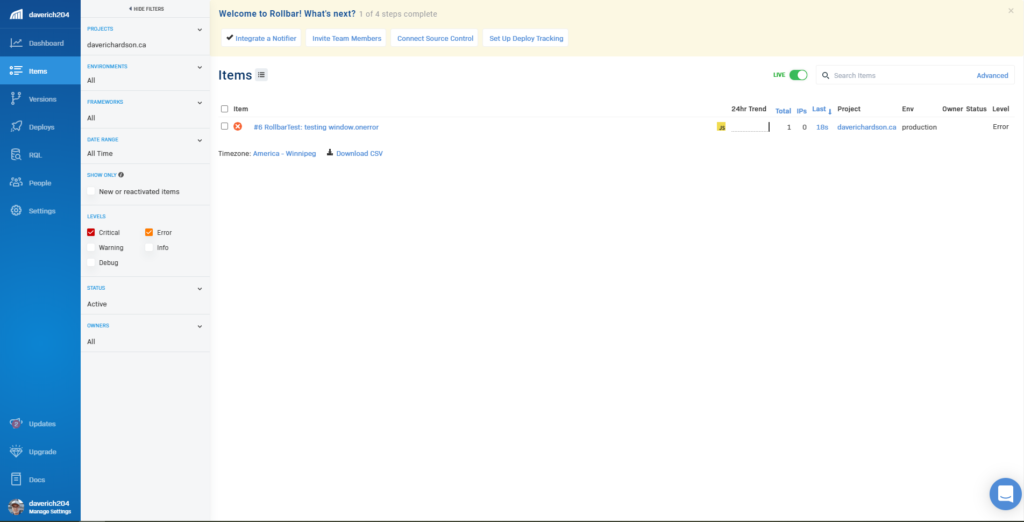
If we want to see more details about this error, we can click on it. This shows us how frequently it’s occuring, how many people are affected by the error, and we can see additional details about the error itself.

Let’s Add React
Installing Rollbar
The easiest way to install rollbar into a react app (like create-react-app) is with yarn/npm.
yarn
If you use yarn you can install it with:
yarn add rollbarnpm
If you use still use npm, you can proceed with:
npm install --save rollbarConfigure Rollbar
React, and javascript in general is nice because it leaves the actual implementation decisions up to you.
config/rollbar.js
In my case, I decided to create a config directory in my React code’s root directory and add a file called rollbar.js that contains the following:
import React from 'react';
import Rollbar from 'rollbar';

export const rollbar = new Rollbar({
  accessToken: 'POST_CLIENT_ITEM_TOKEN',
  captureUncaught: true,
  captureUnhandledRejections: true,
  payload: { environment: window.location.host }
});
Modify our React Component
In one of our React components, this case a Blog container, we will import our Rollbar client.
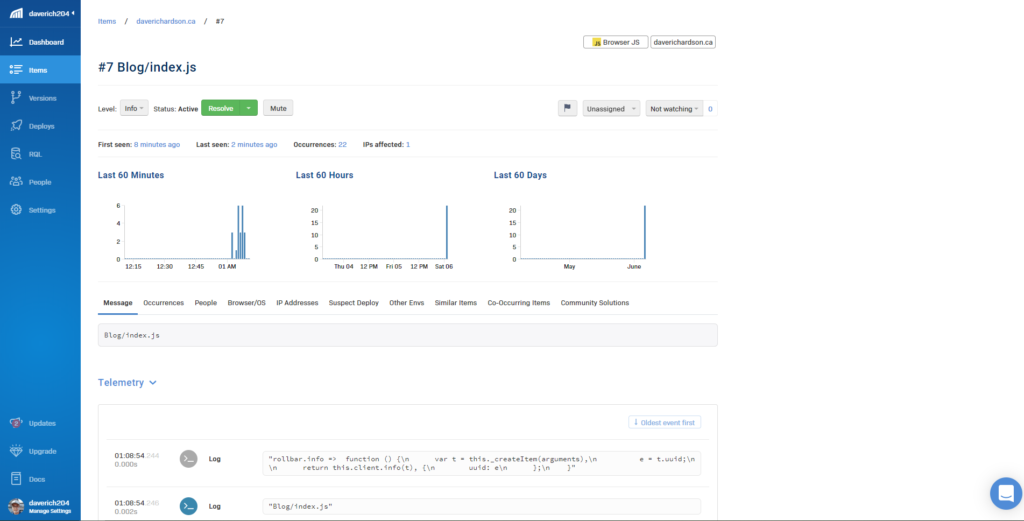
import { rollbar } from '../../config/rollbar.js';To test that it works we can write some code that calls the info method in our component like:
rollbar.info('Blog/index.js')You can see it in the Rollbar dashboard under you’re Items, make sure your Info level is checked
A practical application for this might be to log errors when making an API request to some backend data service.
useEffect(() => {
  fetch('https://blog.daverichardson.ca/wp-json/wp/v2/foo/bar/baz')
    .then((resp) => {
      if (resp && resp.ok && resp.status === 200) {
        return resp.json();
      } else {
        resp.json().then((data) => throw data);
      }
    })
    .then((posts) => setBlogPosts(posts))
    .catch((exception) => rollbar.error('Blog/index.js: Fetch Posts Exception', exception));
}, [])
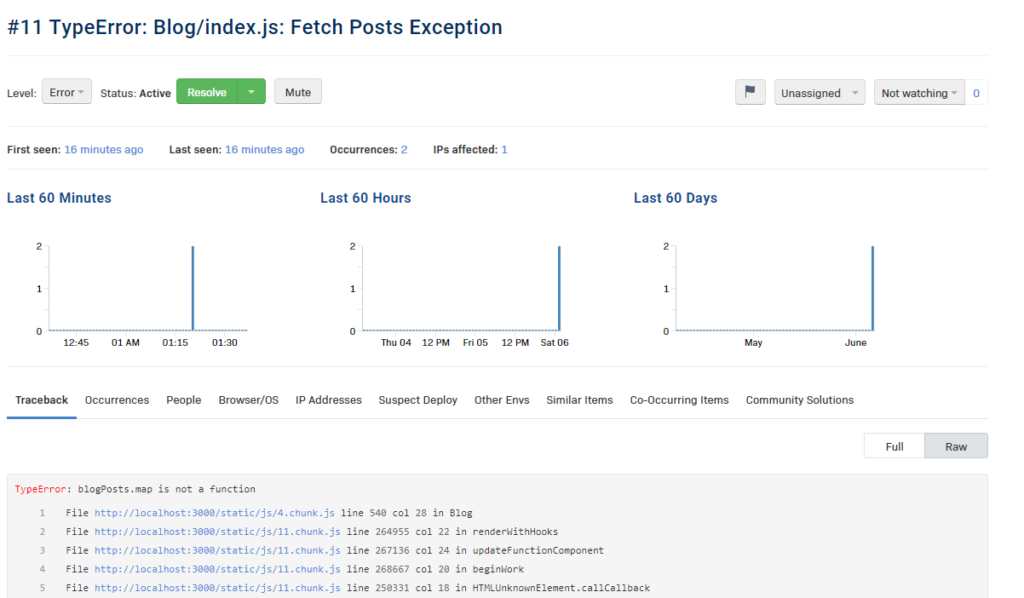
Note the url, /foo/bar/baz isn’t an actual valid WordPress API endpoint, and so our code throws an exception that we catch, and log it to Rollbar
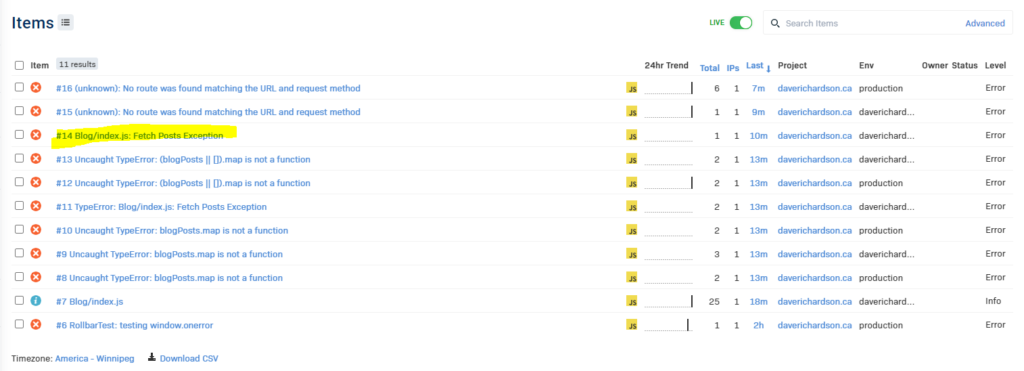
If we click on this error, we can see some details about it, like how often it’s happening, how many users are affected, any browsers / versions that are affected. Tack on version control, and it makes it easy to find which commit was responsible for a given error.
So we go and fix our code, to hit a valid URL and get back an array of posts from our WordPress API; I added some logging here just to show that it’s working.
useEffect(() => {
  fetch('https://blog.daverichardson.ca/wp-json/wp/v2/posts?_embed&per_page=3')
    .then((resp) => {
      if (resp && resp.ok && resp.status === 200) {
        return resp.json();
      } else {
        throw(resp);
      }
    })
    .then((posts) => {
      setBlogPosts(posts)
      rollbar.info('Blog/index.js: Fetch is working Again!')
    }).catch((exception) => rollbar.error('Blog/index.js: Fetch Posts Exception', exception));
}, [])
And what do you know, fetch is working again!

The various log levels not only make logging errors really easy, but also make other analytics really straightforward in general.
Bonus Tip: Easy Filtering by Domain!
Note the payload in our config/rollbar.js file earlier, I have set the environment value to window.location.host.
...
 payload: { environment: window.location.host }
...
This makes filtering errors by domain name super easy, and is really useful for me. This React application will be running on two domains, https://www.daverichardson.ca which serves English by default, and https://www.dawei.ca which serves Chinese by default. Both of these are “production” environments, and they actually run off the same server / nginx vhost, so I find errors are better captured by domain name.
Next Time: React Error Boundaries